Guide
How to Save Outlook Email as PDF
Updated SoftOrbits
Quick answer:
- Dozens of emails from classic Outlook: drag them onto your desktop or any Windows folder, then MSG to PDF Converter turns each saved .msg into a PDF
- One email in classic Outlook: File > Print, pick Microsoft Print to PDF and click Print
- New Outlook or Outlook on the web: open the message, choose Print from the View tab or the ... menu, then Microsoft Print to PDF
- Outlook for Mac: File > Print, open the PDF menu and choose Save as PDF
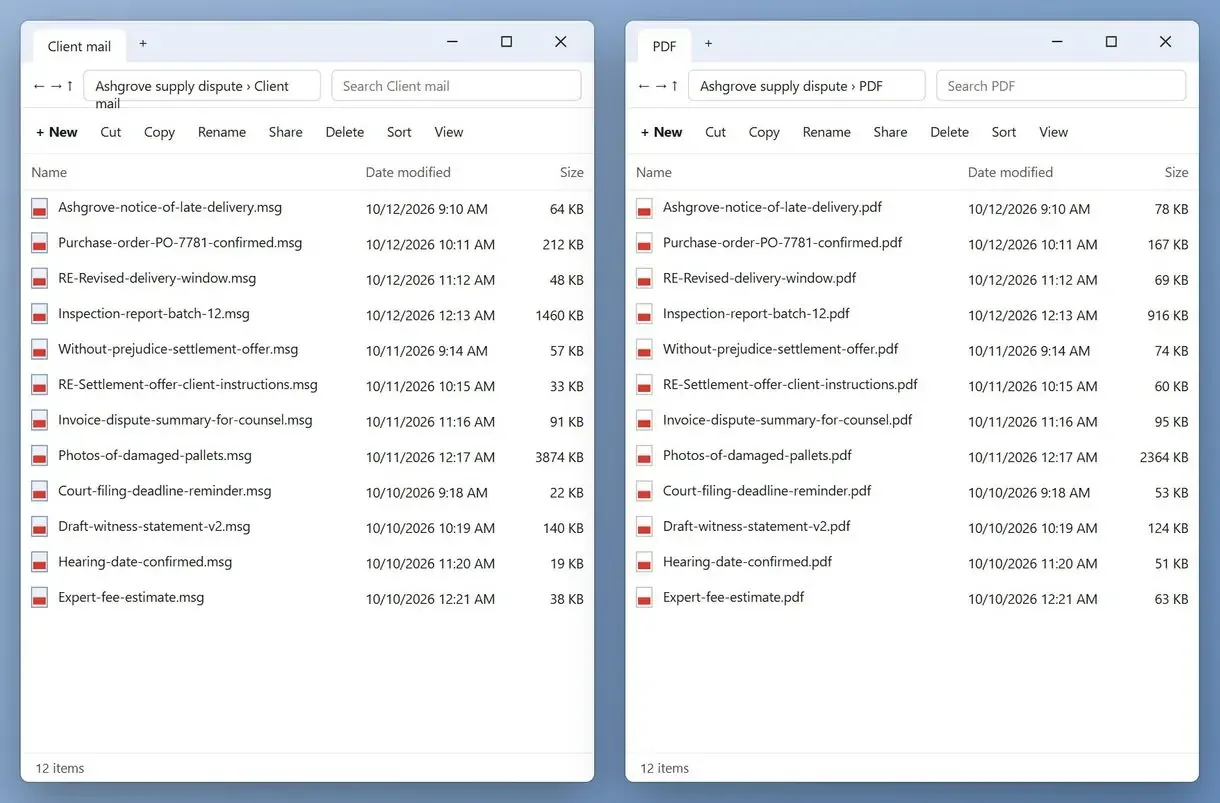
Say a lawyer or auditor asks for 300 emails as PDFs by Friday. One person in a similar spot had already exported a PST and tried a couple of apps, but still had nothing to hand over.
In this guide
- Convert many emails at once with MSG to PDF Converter
- Print one email to PDF in classic Outlook
- Use Print in new Outlook or Outlook on the web
- Save as PDF from Outlook for Mac
What you need
- MSG to PDF Converter for the batch route, on Windows 10 or 11
- Classic Outlook, to drag messages out as .msg files
- Microsoft Print to PDF, built into Windows 10 and 11, for single emails
- About 10 minutes for a first test run
How to export many Outlook emails to PDF at once
Drag messages from classic Outlook into a File Explorer folder. Windows saves one .msg file per email, and MSG to PDF Converter turns the folder into PDFs without opening Outlook.
Outlook has no command to save each selected email as its own PDF: with no batch Outlook export, email as PDF means one print job per message. Printing 300 messages one by one can be slow. Dragging them into a folder gets them out of Outlook in one move.
The .msg format is documented by Microsoft as MS-OXMSG, so the converter reads each file from disk. The PDF includes the sender, date, recipients, subject and HTML body as Outlook showed them. The converter works from saved .msg files on Windows, not from a live mailbox. If your mail is in new Outlook, on the web or on a Mac, use the print routes below.
Printing from Outlook
- Open, print and name each message by hand
- Repeating the print steps for every email
- A selection prints as one combined file
With MSG to PDF Converter
- Drag the emails out once and add the folder
- One PDF per email or one merged file
- Runs offline while Outlook stays closed
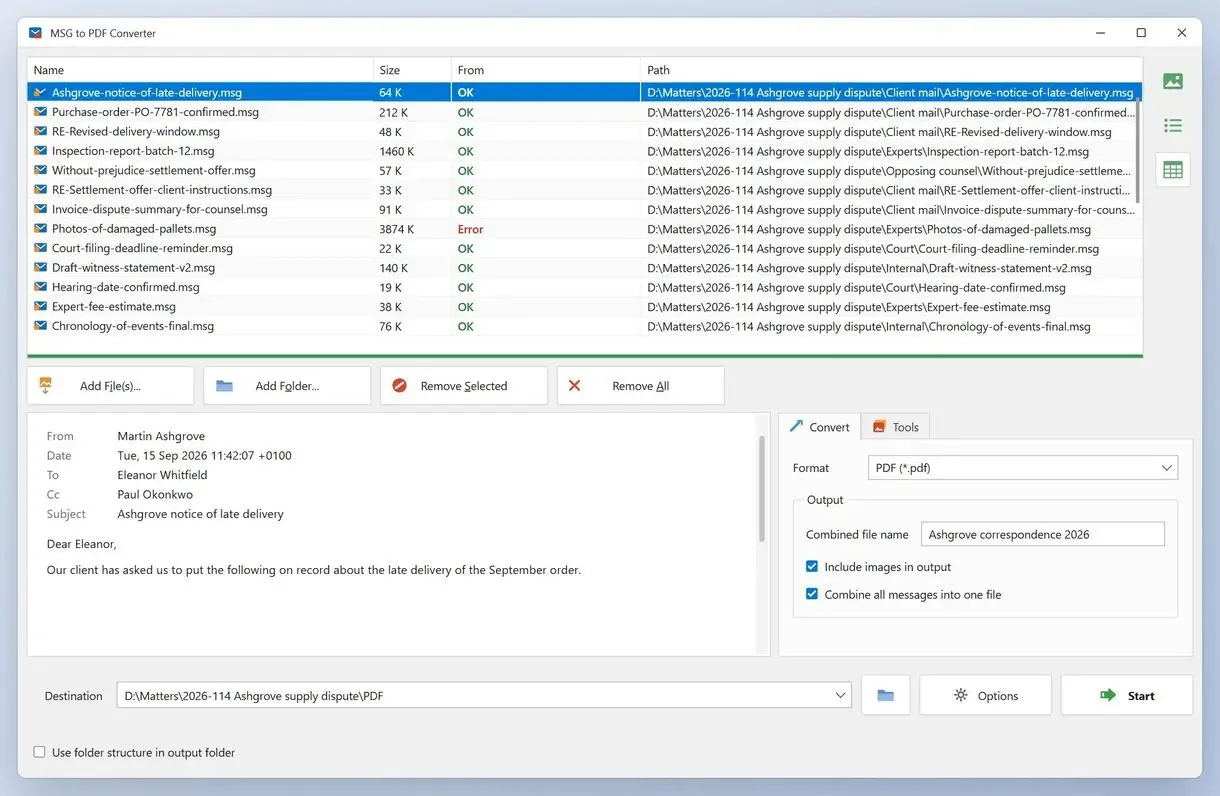
Saving Outlook email to PDF in bulk, step by step
Drag the emails from Outlook into a folder
Select the messages in classic Outlook and drag them onto an open File Explorer folder. Windows saves each one as a separate .msg file.
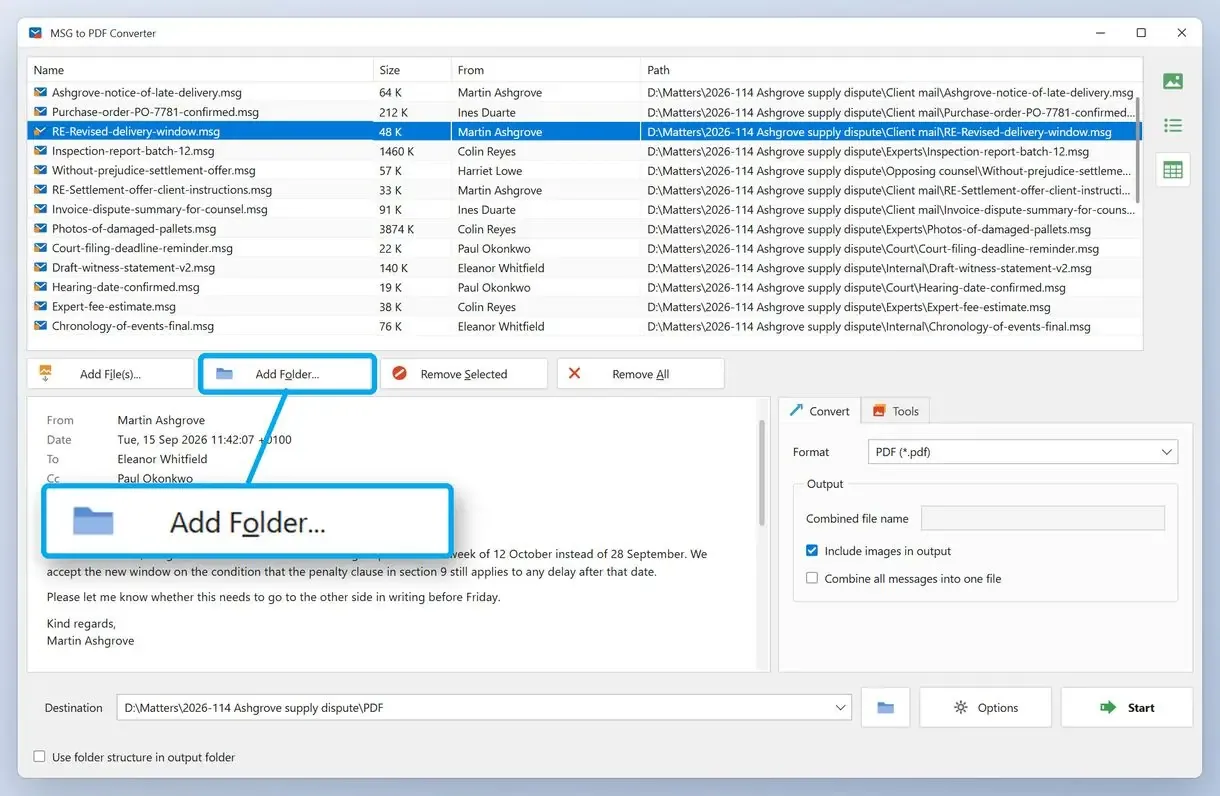
Add the folder to MSG to PDF Converter
Install the program, click Add Folder and pick the folder you just filled. The list shows every .msg it found.
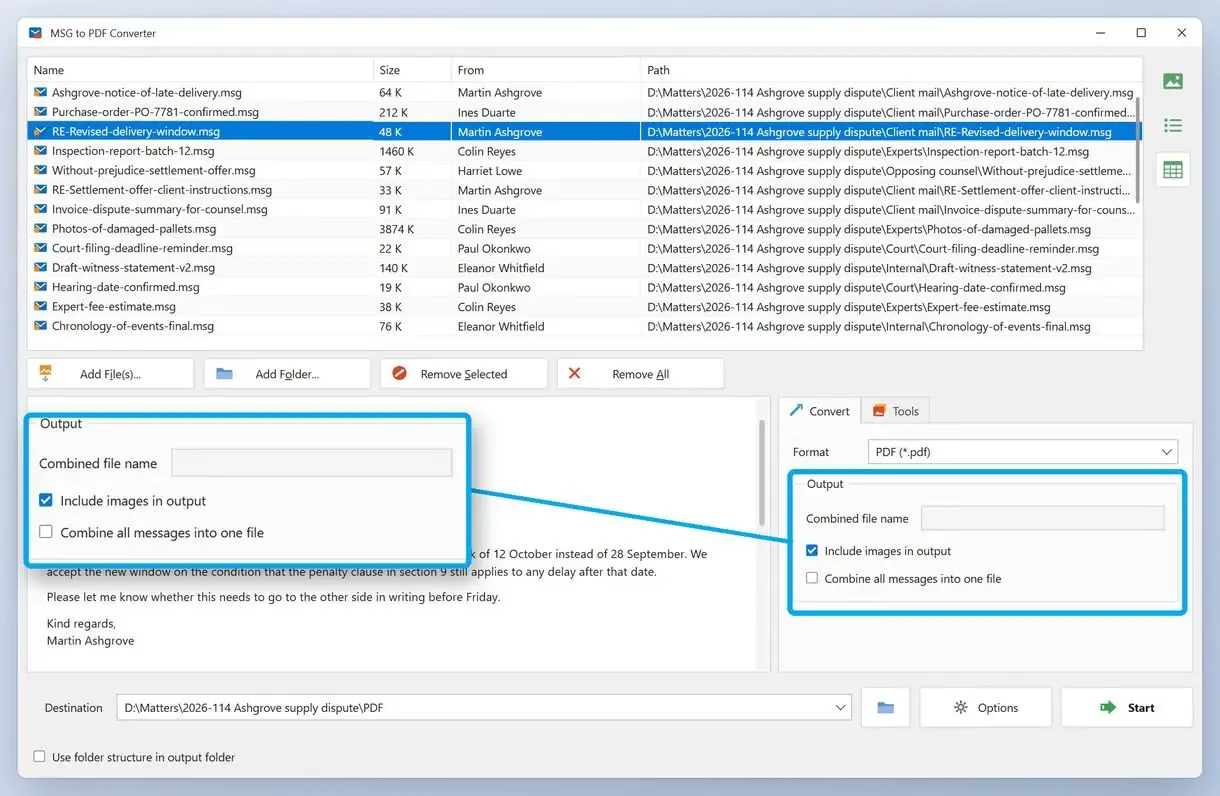
Choose PDF and one file per email, then click Start
On the Convert tab pick PDF, choose one PDF per email or one combined file, leave images on and click Start.
One PDF per email or one combined PDF?
Select several messages in classic Outlook and print them, and you get one combined PDF with every email inside. For evidence or HR files, one PDF per email is easier to name, sort and forward, so choose the mode before you start.
Acrobat's Outlook tool behaves much the same way: one user who needed each message as its own file got a single PDF with no breaks between the emails. A combined file suits someone reading a case from start to finish. A request like "send me the five emails about the March invoice" calls for separate files. In MSG to PDF Converter, the combined PDF follows the file list order. Sort the folder by date first if order matters.
How to save an Outlook email as PDF in classic Outlook
Classic Outlook has no PDF option in Save As, but Windows 10 and 11 include the Microsoft Print to PDF printer. Open the email, choose File > Print, select the PDF printer and click Print. Windows asks for the location to save the file.
- Open the email or select it in the message list
- Go to File > Print, or press Ctrl+P
- Under Printer, choose Microsoft Print to PDF and click Print
- In Save Print Output As, pick a folder, type a name and click Save
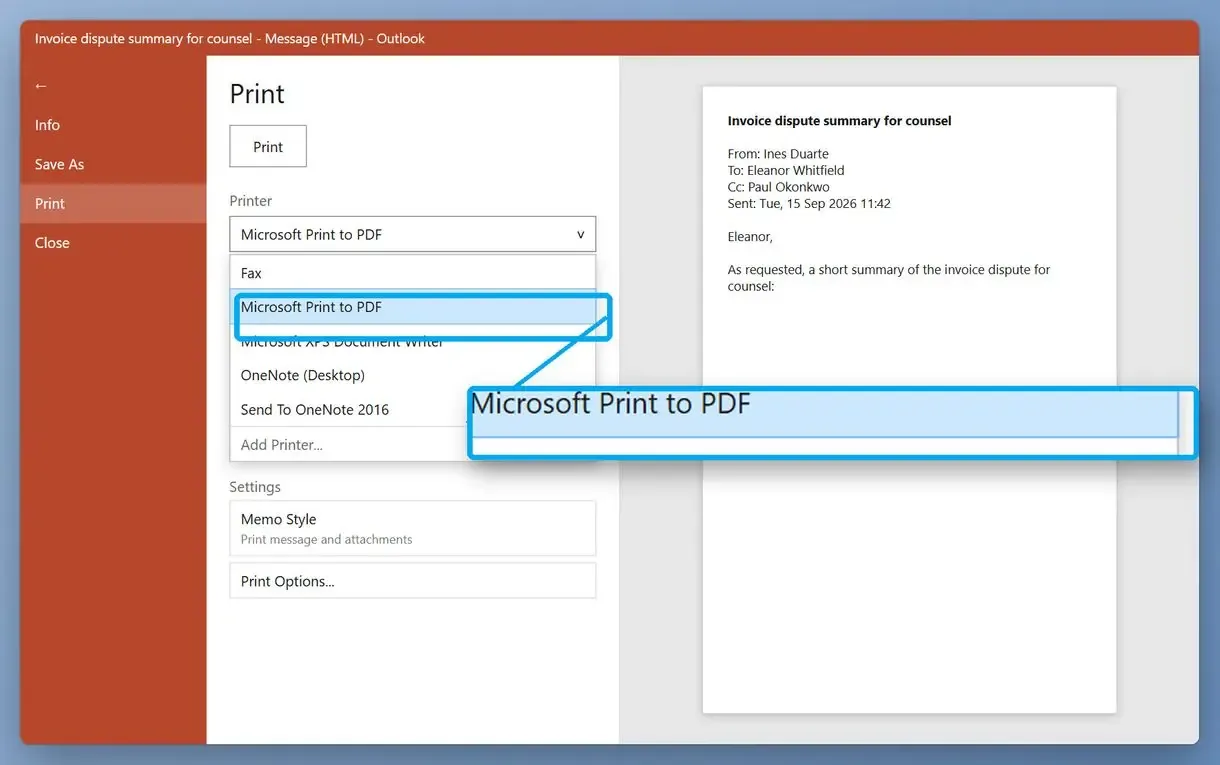
Microsoft's support page on saving messages confirms that PDF is missing from the default Save As types, making printing the official route. For one message, it is simple and works well. A video walkthrough on how to save emails in Outlook as PDF says much the same and warns that it drags once you have dozens to do.
How to save an Outlook email in PDF from new Outlook and Outlook on the web
Open the message, choose Print from the View tab or from the ... menu above the message, then set the printer to Microsoft Print to PDF and click Print. In Edge or Chrome you can also pick Save as PDF as the destination.
New Outlook gives you fewer options. When you select several messages, the Print button greys out, and there is no built-in command to save a whole folder as PDF. You have to print messages one at a time.
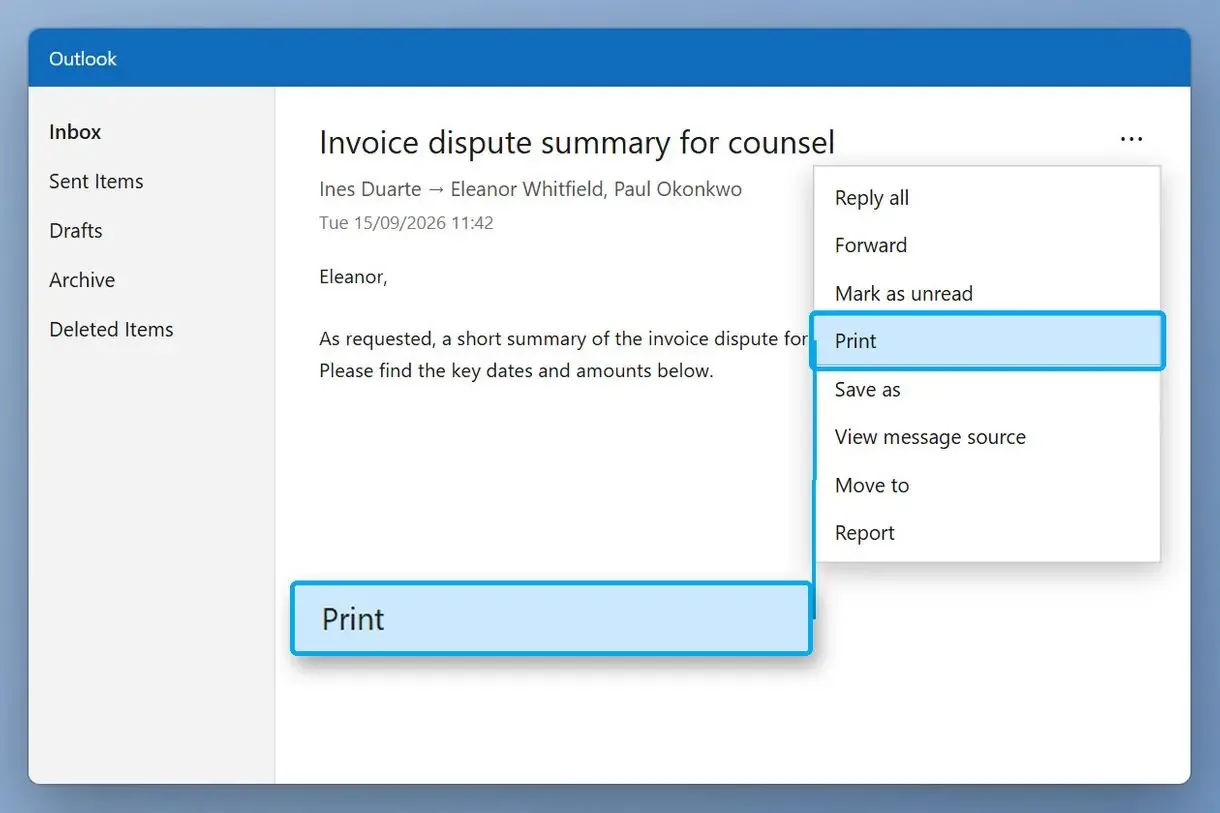
If classic Outlook is still installed on the same PC, switch to it for a batch: drag the messages out as .msg files and use the route above. Browser add-ons that save web Outlook mail as PDF also exist. Check what mailbox access they ask for before you sign in.
How to save an Outlook email as PDF on a Mac
Outlook for Mac uses the macOS print dialog. Open the email, choose File > Print, click the arrow next to PDF and choose Save as PDF, then name the file and pick a folder.
Microsoft's print guide for Outlook lists the same Mac steps. More than one message can be a problem. A Mac user who tried to save a whole folder got one PDF showing a picture of the folder list, not the emails. The Mac dialog has no way to convert several messages at once, so you end up processing them one by one.
Are attachments included when you save an email as PDF?
No. Microsoft Print to PDF flattens the message, so attachments show up only as names or icons and cannot be opened from the PDF. Save the attachments separately, or keep the original .msg next to the PDF.
Classic Outlook has a Print attached files checkbox in its print options, and it looks like the fix. As this walkthrough of the Outlook print dialog points out, the checkbox sends attachments to your default printer as separate jobs, and the PDF stays without them. Web Outlook behaves the same way: someone printing a message from Outlook.com expected the attached files to come along and got only the message.
Here is how to save Outlook email as PDF with attachments kept: right-click any attachment in the open email, choose Save All Attachments, then print or convert the message. MSG to PDF Converter lists attachment names inside the PDF.
Keep the original .msg files after converting. The PDF shows attachment names only; the .msg is the copy that still opens them.
Can Adobe Acrobat convert Outlook emails to PDF?
Yes, if paid Acrobat is installed with its Outlook add-in. Classic Outlook then gets an Adobe tab that converts selected messages or whole folders into a PDF, though users report gaps with images and attachments.
Adobe's guide to Acrobat and Outlook covers the setup and says attachments are converted to PDF with the messages. In practice, image attachments such as JPG or GIF have gone missing from received mail while sent mail kept them. In one case, inline pictures disappeared from the PDF; the poster then found them in the Attachments panel. If you already pay for Acrobat, test it on a few messages with pictures first.
Adobe tab missing? In classic Outlook go to File > Options > Add-ins, set Manage to COM Add-ins, click Go and tick the Acrobat PDFMaker add-in. One Acrobat user's batch of hundreds of .msg files stopped coming out as separate PDFs until the plugin settings were switched back on.
Why is Print to PDF missing or not working in Outlook?
Most often, the Microsoft Print to PDF printer is switched off in Windows, or new Outlook greys out Print because several messages are selected. Turn the printer back on in Windows Features, or print one message at a time.
To restore the printer, open Turn Windows features on or off, tick Microsoft Print to PDF and click OK.
An image may also be cut off halfway down the page. One Outlook 365 user saw the same cut on paper and in the PDF, so swapping the PDF printer will not fix it. For that message, saving it as .msg and converting it on the desktop renders the HTML body again and is a second route worth testing.
Can you convert an Outlook email to PDF online?
Yes, if you first save the email as a .msg file and upload it to an online converter. Free tiers cap the file size, and the email leaves your PC, which matters for client or HR mail.
For a one-off receipt you keep for records, an online tool is fine. For work email, a desktop converter keeps the files on your own disk, and Microsoft Print to PDF does the same for single messages. For one saved file, see how to convert MSG to PDF.
What is the best way to save an Outlook email as PDF?
Microsoft Print to PDF is free and already on your PC, which covers one message. For dozens or hundreds, drag them out of classic Outlook as .msg files and convert the folder in one run. The table compares the routes for a PDF archive.
| Method | Emails per run | Separate PDF per email | Attachments in the PDF | Cost | Works in |
|---|---|---|---|---|---|
| MSG to PDF Converter (saved .msg files) | A whole folder | Yes, or one combined file | Names listed | 3 free per day, then a license | Windows 10 and 11 |
| Classic Outlook, Print to PDF | One, or a selection as one file | Only one at a time | Names on the page, no files | Free | Windows |
| New Outlook or the web, Print | One | Yes, one per print | Not embedded | Free | Windows, browser |
| Outlook for Mac, Save as PDF | One | Yes, one per print | Message only | Free | macOS |
| Adobe Acrobat add-in | Selected messages or folders | Usually one combined PDF | Included, with reported gaps | Paid Acrobat | Classic Outlook on Windows |
| Online converter | One file per upload | Yes | Varies by service | Free tier with a size cap | Browser |
If saving Outlook email to PDF is a one-off for a booking or a receipt, print it. A dispute file or an HR request full of important Outlook emails is where the batch route saves hours. Our guide to batch convert MSG to PDF covers the converter settings in more detail.
Why printing breaks down past a few emails
Every free route inside Outlook gives you one PDF per print job, or merges a selection into one file. Each Print to PDF job also asks for a file name, so you cannot save Outlook email as PDF automatically this way: 300 emails means 300 names typed by hand.
Bulk convert without printing on Windows
On Windows, here is how to save Outlook email as PDF without printing. Save the messages from classic Outlook as .msg files, then convert the whole folder in one run. The bulk export step needs classic Outlook. Outlook on the web can download single messages as .msg, but new Outlook and Mac users with many emails use the print steps above. Larger mailboxes have a separate guide to export Outlook emails to PDF.
Sources
- Wikipedia: PDF - background on the PDF format and its versions
- Wikipedia: Microsoft Outlook - history of classic Outlook, new Outlook and Outlook for Mac
FAQ
Can I use Adobe Acrobat with Outlook?
Yes. With Acrobat installed, classic Outlook shows an Adobe tab that converts selected emails or whole folders into a PDF. Test messages with pictures first, since users report images moving into the attachments panel.
How do I export all my emails from Outlook?
For a full backup, classic Outlook exports a .pst file under File > Open & Export > Import/Export. For PDFs, drag a folder's messages into File Explorer as .msg files and convert them in one batch.
How to save an Outlook email as a file?
In classic Outlook choose File > Save As and keep the Outlook Message Format (.msg) type. The .msg keeps the attachments, and you can open it later or convert it to PDF.
What is the best way to save an Outlook email?
Keep the .msg if you may need the attachments later, and make a PDF when someone has to read the email without Outlook. For a single message, Outlook's print feature is enough.
How do I add Convert to Adobe PDF in Outlook?
Install Acrobat Standard or Pro, since the free Reader has no Outlook add-in, and restart classic Outlook. If the Adobe tab still does not show, re-enable Acrobat PDFMaker under File > Options > Add-ins > COM Add-ins.
How can I convert an Outlook email to a PDF online?
Save the email as a .msg file, upload it to an online MSG to PDF converter and download the result. Free tiers cap the size, and the message passes through someone else's server.
Why can't I print in Outlook?
In new Outlook, Print greys out when several messages are selected, so pick one. If Microsoft Print to PDF is missing from the printer list, turn it back on in Windows Features.
How to save an Outlook email as PDF without printing?
Save the email as .msg and convert it with a desktop converter, or use the Acrobat add-in, which builds the PDF from the Adobe tab.
How many emails can I convert in the MSG to PDF Converter trial?
The trial converts 3 messages per day, counted by your PC's date.
Convert your saved Outlook emails to PDF on Windows.