Guide
How to Export Outlook Emails to PDF
Updated SoftOrbits
Quick answer:
- Many emails in classic Outlook: drag them into a folder as .msg files, then MSG to PDF Converter turns the folder into one PDF per email or one combined file
- A handful of emails in classic Outlook: select them, choose File > Print and pick Microsoft Print to PDF for one combined PDF
- New Outlook or Outlook on the web: open each message, choose Print and save it as a PDF, one email per file
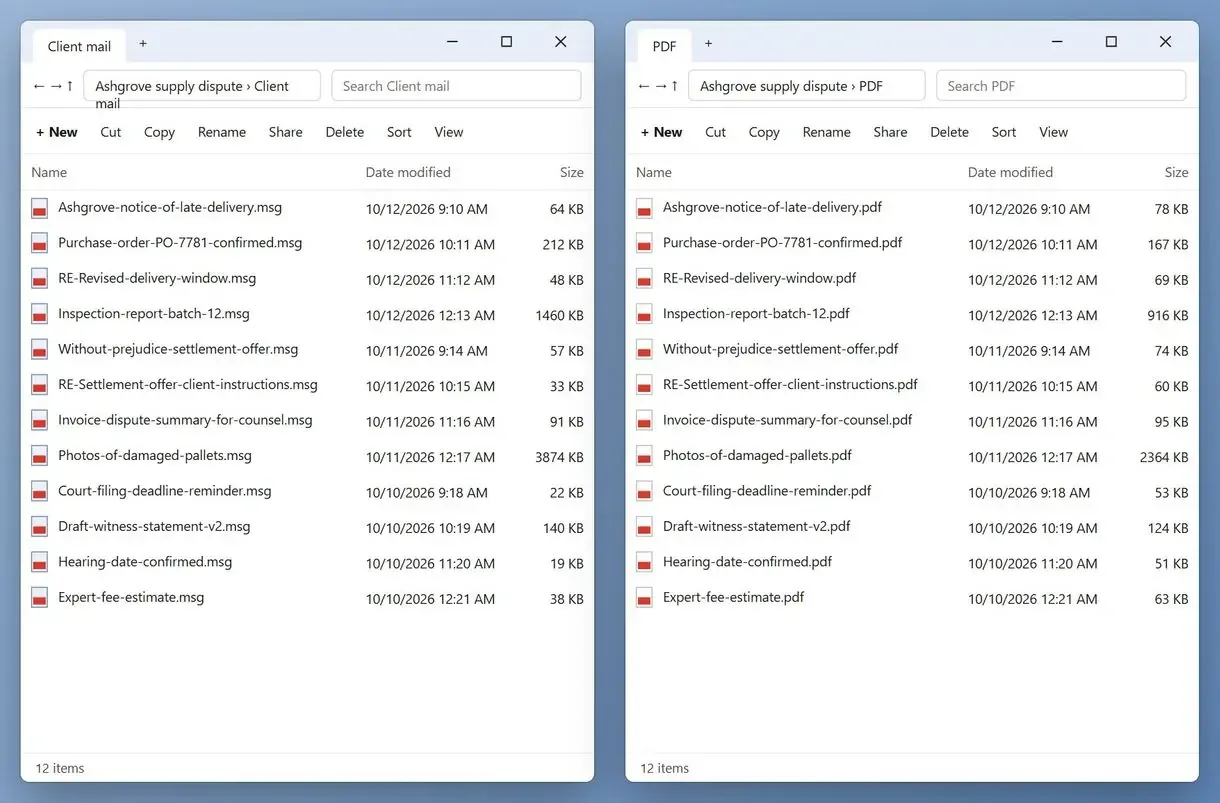
For dozens of client messages going into a lawyer's file or an HR file, the route depends on your Outlook version and whether you need one PDF per email. This guide covers the Print options and batch conversion with MSG to PDF Converter, including the limits of each route.
In this guide
- Bulk: drag emails out as .msg files, then convert the folder with MSG to PDF Converter
- Classic Outlook: print selected emails to one combined PDF
- New Outlook and web: print one message at a time
What you need
- MSG to PDF Converter on Windows 10 or 11, for the bulk route
- Classic Outlook, to drag the emails out as .msg files
- An empty folder in File Explorer for the saved messages
- About 10 minutes for a first test run
How to bulk export Outlook emails to PDF with MSG to PDF Converter
Drag emails from classic Outlook into a folder as .msg files. MSG to PDF Converter converts that folder into one PDF per email or one combined PDF.
In help threads, people often start by dragging messages into a folder, which saves each email and its attachments as a separate file. The converter processes that folder in one run.
Printing from Outlook
- One message per print in the new Outlook
- Classic Outlook merges the selection into one PDF
- A file name typed for every save
With MSG to PDF Converter
- A whole folder of .msg files in one run
- One PDF per email or one combined PDF
- Outlook can stay closed
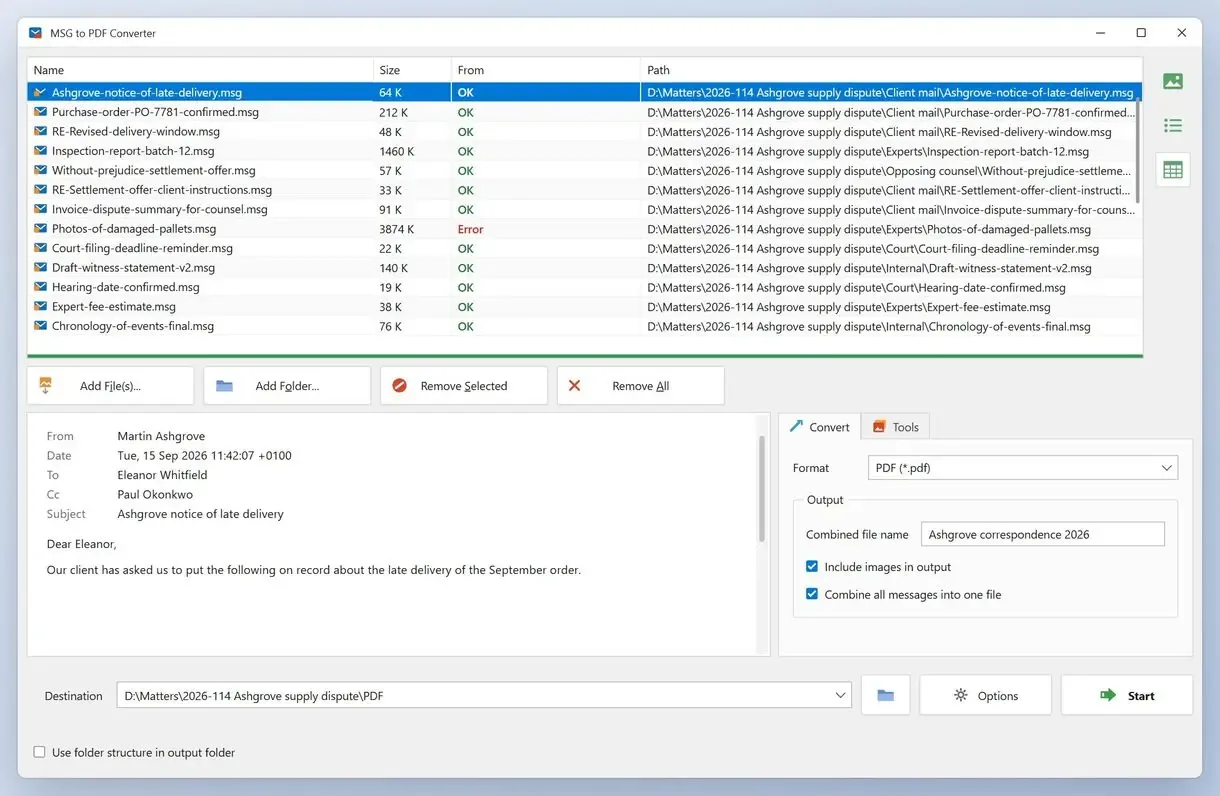
How to save Outlook emails as PDF in three steps
Drag the emails out of Outlook into a folder
In classic Outlook, hold Ctrl or Shift to select the emails you wish to save, then drag them from the Outlook window onto an empty folder in File Explorer. Each message becomes its own .msg file.
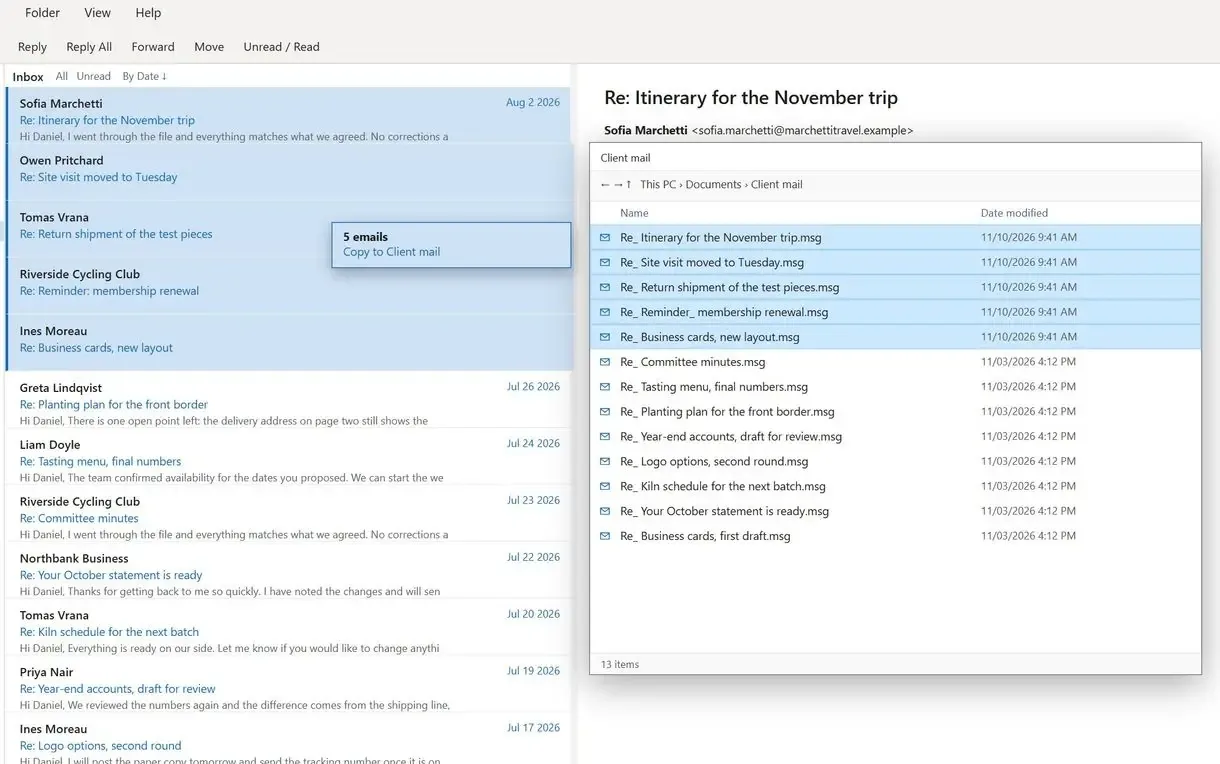
Add the folder to MSG to PDF Converter
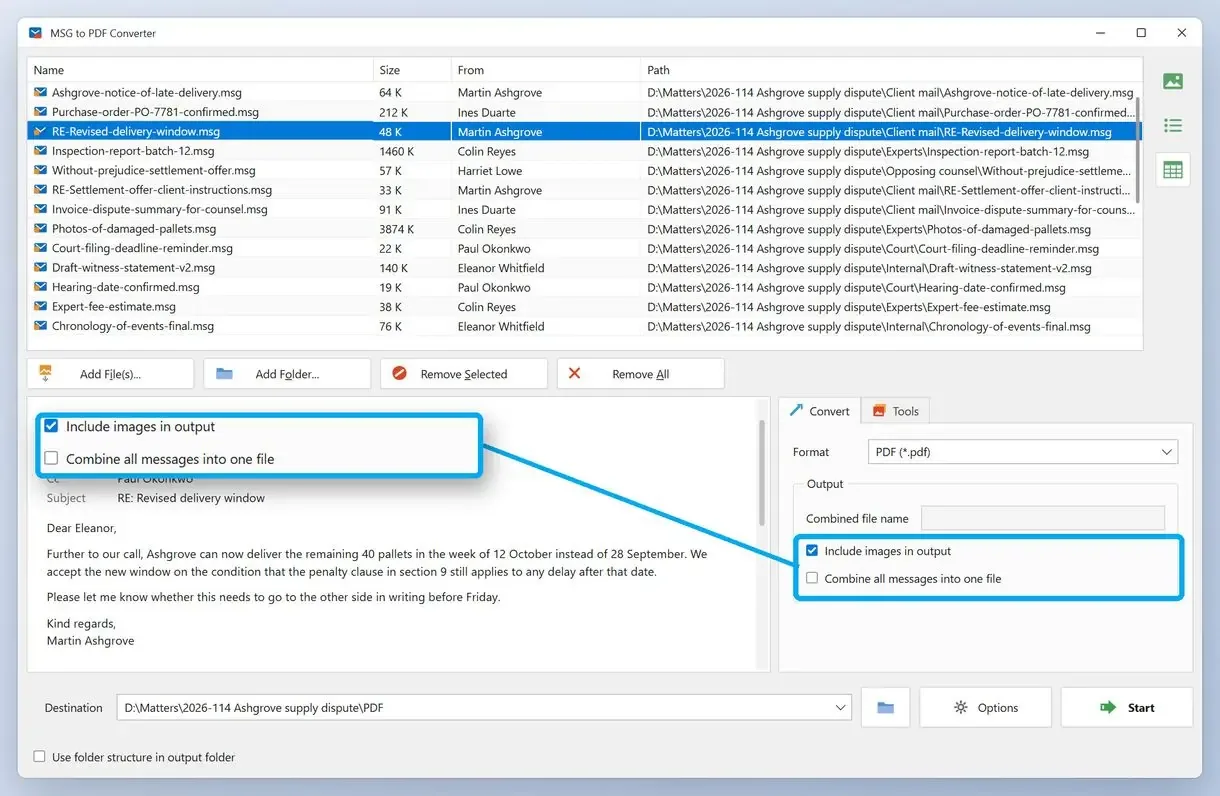
Open the program and click Add Folder, or drop the .msg files onto the list. Each message appears as a row.
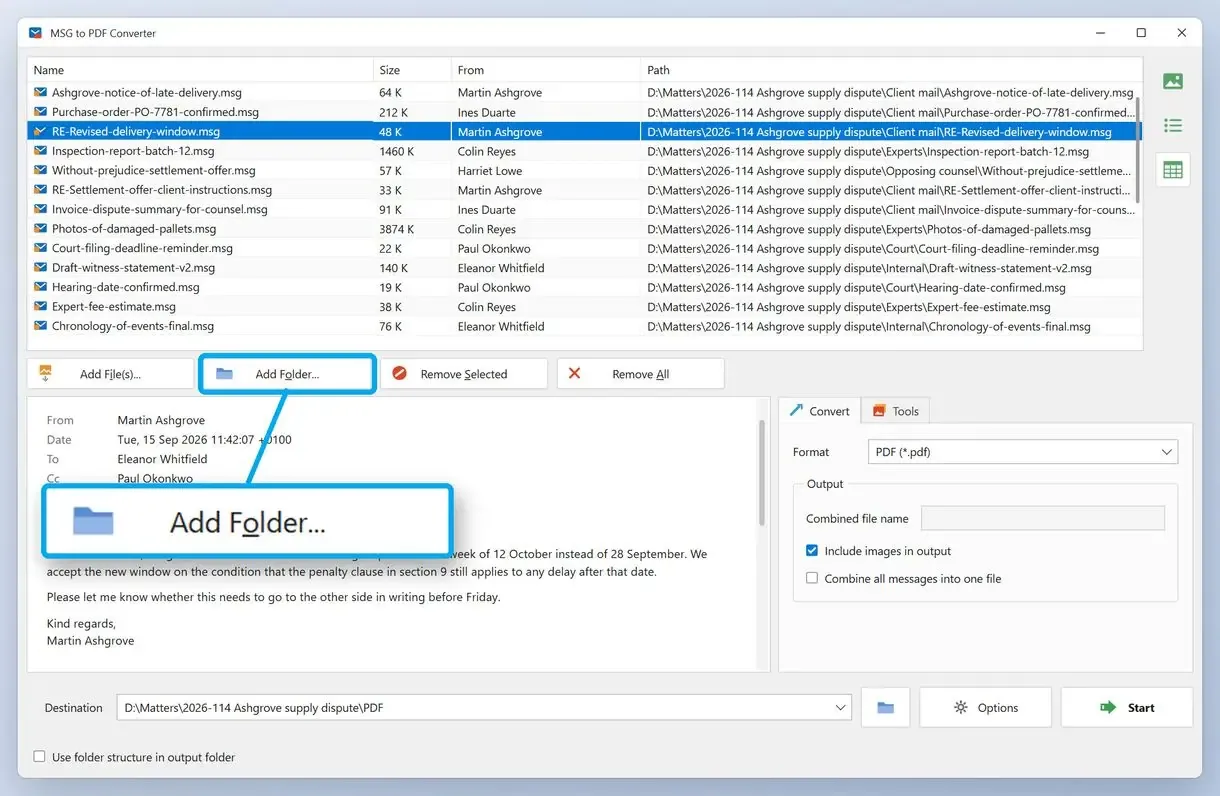
Pick PDF and one file per email or one combined file
On the Convert tab, choose PDF. Tick Combine all messages into one file for one combined PDF, or leave it clear for a separate file per email. Choose whether to include inline images, set the destination folder and click Start. Open a result in the default PDF viewer to check its headers and body.
How do you save Outlook emails as .msg files first?
Saving .msg files is step one of how to save Outlook emails to PDF in bulk: drag selected messages from classic Outlook onto a File Explorer folder. Each email becomes a .msg file for the converter.
Microsoft documents .msg as Outlook's own message format in the MS-OXMSG specification. It uses a Compound File Binary container, which keeps attachments intact. Dragging messages from classic Outlook also avoids a reported new Outlook limit: readers say Print turns grey when they select a second message.
Skip File > Save As for a batch. In some Outlook versions, saving several selected messages at once only offers Text Only (.txt), and the formatting is lost.
A single PDF for multiple emails or a separate PDF for each email?
Choose separate PDFs to file or cite messages individually. Choose one combined PDF to read an exchange in order.
One combined PDF suits a group of emails relating to one subject, such as a contract negotiation. Separate files suit evidence folders and document systems that file each message as a separate record. In a help thread, one person needed ten individual PDFs, kept getting one combined file, and said that would work only if each message started on a new page. The converter's switch is on the Convert tab, so you can run the folder twice: as one pdf file for reading, then as separate files for the archive.
How to save multiple Outlook emails as PDF in classic Outlook
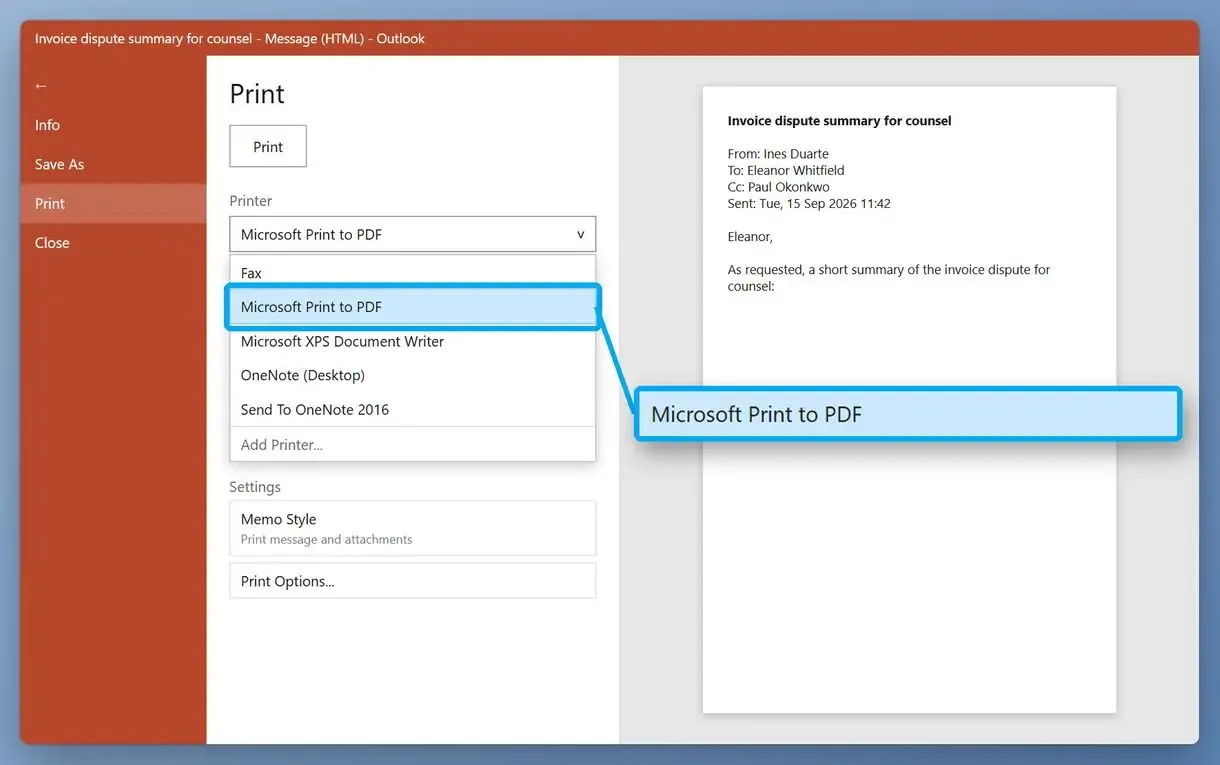
Select the emails, choose File > Print, select Microsoft Print to PDF and save. Classic Outlook prints the selection into one combined PDF, free and with nothing extra to install.
- Click the first email, then hold Shift to select a range, or hold Ctrl and highlight them one at a time
- Go to File > Print
- Under Printer, choose Microsoft Print to PDF and click Print
- Choose a location, name the PDF and click Save
A help-thread answer notes that classic Outlook prints several emails in one pass, but always combines them into one PDF. Microsoft Support says PDF is missing from Save as types, so printing is the built-in path. For one message, follow the shorter steps to save an Outlook email as a PDF.
Why does the new Outlook convert only one email at a time?
In the new Outlook and Outlook on the web, Print works on the open message and greys out when you select several. The built-in route is one PDF per email: open the needed email, print it to Microsoft Print to PDF and repeat.
A Windows 11 user who moved to the new Outlook could convert only one email at a time and found no way to choose a folder. If you can't see this option after selecting several emails, the new app does not offer it. Ten messages by hand is fine; for two hundred, use the .msg batch from the top of this guide.
Microsoft's help pages describe printing one message to PDF in every Outlook version, not batches. In the new Outlook, the Acrobat add-in also greys out on a multi-selection.
How do you export emails from Outlook to PDF for a whole folder?
Neither Outlook version prints a mail folder straight to PDF. Open the Outlook folder, press Ctrl+A, drag everything into a File Explorer folder and add it to the converter in one run.
With Acrobat installed, classic Outlook shows Convert to Adobe PDF near the bottom of the list when you right-click a mail folder. The new Outlook dropped that option. A longtime helper in a support thread attributed this to a limitation with the New UI of Outlook. Once the emails are .msg files, the Outlook version stops mattering. Make one Explorer folder per mail folder, drag in the emails you want to gather together and run the folders one at a time to keep the PDFs grouped.
How do you export all your emails from Outlook?
In classic Outlook, export a whole mailbox through File > Open & Export > Import/Export > Export to a file > Outlook Data File (.pst). This creates a backup file that opens in Outlook, not PDFs.
A menu will pop up with the import and export choices. The wizard will then ask you which folders to include and where to save the file, as shown in Microsoft's PST export guide. Someone gathering a mailbox for a lawyer used this route and got stuck with the PST; outside apps were little help. The converter works from .msg files, so open the PST in classic Outlook and drag emails out folder by folder. For a PST backup, see how to back up Outlook emails.
What happens to attachments when you save emails as PDF?
Printing to PDF flattens attachments into names or icons that cannot be opened from the PDF. The .msg file keeps the actual attachments, so store it beside the PDF.
The current release of MSG to PDF Converter lists each email's attachment names, From, Date, To and Subject fields, and body. In classic Outlook, set Microsoft Print to PDF as the default printer to print attachments themselves as separate PDFs. Phones add their own catch, and one tech-tips video points out that converting an attachment needs a PDF converter app, and the option may first have to be switched on.
Keep the .msg files in the same folder as the PDFs. If someone later asks for the original spreadsheet or the full headers, the .msg still has them.
Can you save Outlook emails as PDF without Outlook or the cloud?
Yes, once the emails are .msg files. MSG to PDF Converter reads them without Outlook running, and the mail stays on your PC, which matters for legal or HR correspondence.
The free routes are the Print paths above. A help-thread answer describing classic Outlook also notes that it cannot batch-save PDFs with attachments that still open. For .msg files from another system, use the same steps to convert MSG to PDF. The paid route includes a trial you can run on your own files:
Which way to export Outlook emails to PDF fits your mailbox?
For more than a handful of emails, or when each message needs its own PDF, use the .msg batch. For a few messages in classic Outlook, Print to PDF is enough; in the new Outlook, it is the only built-in option.
| Route | Outlook version | Many emails at once | Output | Attachments |
|---|---|---|---|---|
| MSG to PDF Converter (emails saved as .msg) | Classic to save the files, none to convert | Yes, a whole folder | One PDF per email or one combined PDF | Names listed, files stay in the .msg |
| Print to PDF in classic Outlook | Classic | Yes, the selection | One combined PDF | Flattened to names or icons |
| Print to PDF in new Outlook or web | New, web | No, one open message | One PDF per print | Not openable from the PDF |
| PST export | Classic | Yes, the whole mailbox | A .pst data file, no PDF | Kept inside the .pst |
Sources
- Wikipedia: PDF - format overview, including embedded files and attachments
FAQ
How do I export all my emails from Outlook?
In classic Outlook, use File > Open & Export > Import/Export > Export to a file and choose Outlook Data File (.pst). This gives you one mailbox backup file. For PDFs, drag emails out as .msg files and convert them.
How to download Outlook emails as PDF online?
Upload the saved message to an online converter and download the PDF. That suits one harmless email, but the message goes to a third-party server, so keep client or HR mail on your PC.
How do I convert an Outlook email thread to PDF?
Print the latest reply to Microsoft Print to PDF; it usually quotes earlier messages. To save every message in the thread as its own file, select the conversation, drag it into a folder and convert the .msg files.
How can I convert an EML file to PDF?
Open the .eml in an email app such as classic Outlook and print it to Microsoft Print to PDF. For a folder of EML files, use an EML to PDF converter; MSG to PDF Converter handles .msg files.
Can I batch convert Outlook emails to PDF with attachments?
Partly. A batch run creates PDFs and lists attachment names, while the attachment files remain in the .msg. Print to PDF flattens them too, so keep the .msg files as the copy with working attachments.
Why does a PDF Portfolio show only one email?
A Portfolio packs each email as a separate file inside one PDF, and some viewers show only the first one. Send a plain multi-page PDF if the reader may not have Acrobat.
How many emails does the MSG to PDF Converter trial export?
The free demo converts 3 emails a day, and the counter resets at midnight. You can check inline images and headers on your own mail before converting the full folder.
Convert your saved Outlook emails to PDF on Windows.